
Appearance
Applications Tab
The Applications tab displays discovered applications from configured discovery providers that are allowed by your enterprise's policy configuration. When you launch an app from Turbo Launcher, it runs in the isolated Secure Sandbox runtime.
What You'll Learn
- How to browse and find applications
- How to launch applications
- How to use the context menu
- What profile entries, diagnostic mode, and session actions do
Overview
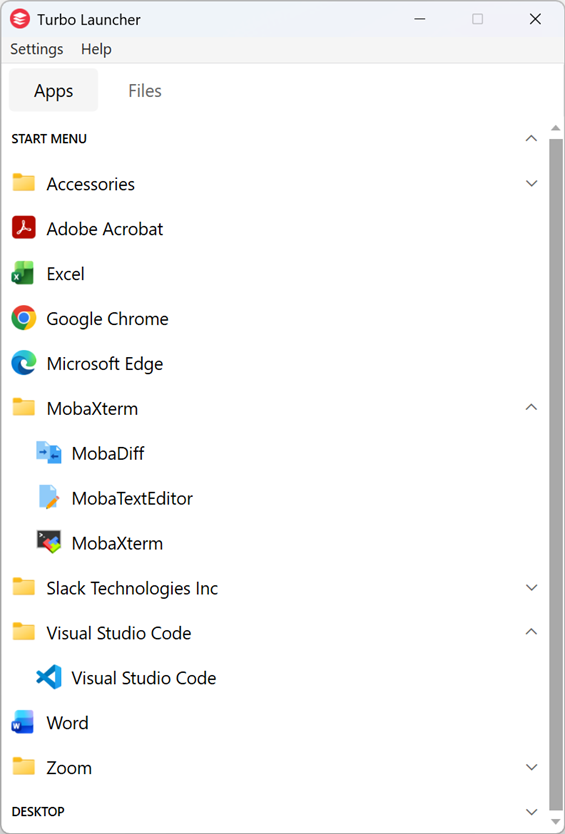
The Applications tab organizes discovered applications grouped by platform and source. Only applications explicitly allowed by your organization's policy configuration are displayed.
Key points:
- Apps are grouped by platform and source, for example:
- Windows → Start Menu, Desktop, Apps
- macOS → Applications (System/User)
- Linux → Applications (System/User)
- Web → PWAs, SaaS apps, Bookmarks
- Only apps allowed by your organization’s configuration appear in the list.
- The list updates automatically and can be refreshed with F5.
For administrators configuring which apps appear here, see:
Browsing and Finding Applications
In the Applications tab you’ll see apps organized in an expandable tree.
- Click a group (for example, Windows → Start Menu) to expand it.
- Scroll to browse the available applications.
- Press F5 to refresh the list if you’ve just had software installed or your access changed.
Common groups you may see:
- Windows
- Start Menu – Apps from your Windows Start Menu
- Desktop – Shortcuts from your Desktop
- Other – Apps from PATH directories
- Apps (MSIX/UWP) – Store and packaged apps
- macOS
- Applications (System/User) – Applications from
/Applications,/System/Applications, and~/Applications
- Applications (System/User) – Applications from
- Linux
- Applications (System/User) – Applications from standard application menus
- Web
- PWAs – Installed Progressive Web Apps
- SaaS – Cloud applications from your organization’s catalogs
- Bookmarks – Web links and sites
You may also see:
- CLI tools – Command-line tools
- Portable apps – Apps stored in special portable locations
- Workspaces – Apps from Turbo Workspaces you are entitled to
What Happens When You Launch an App
When you click an application in Turbo Launcher:
- The app starts in the Secure Sandbox runtime, which isolates it from your normal desktop environment.
- The first time you launch a native app, Turbo imports the app into the sandbox at launch time so it can run with the right policy controls. Later launches reuse that imported app.
- The app’s network access may be different from non-sandboxed apps. For example, the app may use policy-controlled network resources and routing to access internal resources.
Launching Applications
To launch an app:
- Open the Applications tab.
- Expand the group where the app is listed.
- Click the application entry.
From your perspective it behaves like a normal desktop or web app, but it is isolated according to your organization’s security settings.
If nothing happens when you click an app, see the Troubleshooting guide.
Using the Sessions Tab
The Sessions tab shows the app sessions you’ve already launched in the Secure Sandbox runtime.
- Click a session to relaunch the app.
- Right-click a session and choose Delete to reset local session data when an app is stuck.
Note: Deleting a session removes local app data stored in the sandbox for that app.
Using the Context Menu
Right-click any application to access additional launch options.
Run
Starts the application with the standard settings your administrator configured.
Use Run when you just want to open the app normally.
Launch Profiles
Some apps have multiple ways to be launched, called Launch Profiles.
Examples:
- Run Chrome (Incognito) – Opens Chrome in incognito/private mode
- Run Chrome (Profiling Mode) – Opens Chrome with special diagnostics enabled
- Run VS Code (Extensions Disabled) – Opens VS Code without extensions
To use a launch profile:
Right‑click the app, then click the desired profile entry that appears directly under Run (for example, Run Chrome (Incognito)). Profiles are like shortcuts with different arguments/flags.
Run in Diagnostic Mode
Run in Diagnostic Mode starts the app with extra logging.
Use this only when requested by support or when you are trying to collect more information about a problem.
Behavior:
- The app runs as usual but records detailed logs.
- When you close the app, a folder with logs automatically opens.
- You can send these logs to your help desk or administrator.
Manage Sessions
You can manage app sessions from the right-click menu in the Applications tab, or from the Sessions tab.
- New session — Starts a new, separate session for this application (uses a new container name). Use when you need a clean, parallel instance without deleting existing sessions.
- Delete sessions (reset local session data) — Removes all local sessions for this application (deletes container data). This is often the first thing to try when an app won’t launch or behaves unexpectedly.
WARNING
Deleting sessions removes local app data stored in the sandbox for this app.
See also
How Applications Are Organized (Advanced)
Behind the scenes, the Applications tab is populated by discovery providers and filtered by policy.
- Entries are grouped by provider/source. Typical top‑level groups:
- Windows → Start Menu, Desktop, Apps (MSIX/UWP)
- macOS → Applications (System/User)
- Linux → Applications (System/User)
- Web → PWAs, SaaS, Bookmarks
- Additional groups (if enabled):
- CLI tools (from PATH and package managers)
- Portable apps (from configured scan roots)
- Workspaces (Turbo Server Workspaces)
Administrators can control which providers are enabled and how entries are deduplicated and filtered. For full provider and schema details, see:
If an expected application is missing, your administrator may need to update policy. For troubleshooting steps you can take as an end user, see: