
Appearance
Files Tab
The Files tab allows you to browse, import, and manage files within your secure sandbox storage. You can import files via drag-and-drop, open them in sandboxed applications, and delete items you no longer need.
What You'll Learn
- How sandbox storage works
- How to browse and navigate folders
- How to switch between Storage Contexts
- How to import, open, and delete files
- How Turbo Drive (cloud storage) fits in
Overview
The Files tab is a convenient browser for your organization's designated Shared Storage locations.
::: note How this relates to your apps When you are inside an application (like Word or Excel), you will see your standard Documents and Desktop folders. These are mapped to persistent storage.
The Files tab in the Launcher provides a quick way to browse, import, and manage content in these secure areas without opening an application. :::
Navigating Files
Inside the Files tab you can:
- Open folders – Click a folder to navigate into it.
- Go back – Use the back button to return to the previous folder.
- Use breadcrumb navigation – The breadcrumb at the top shows where you are; click parts of it to jump back up the folder tree.
- Refresh – Press F5 to manually refresh the file list.
The file list also updates automatically every 30 seconds to reflect changes.
Switching Storage Contexts
If your organization configured multiple storage areas, you’ll see a Context picker at the top of the Files tab.
To switch contexts:
- Click the Context dropdown.
- Select the context you want (for example, Personal or Team Project).
Notes:
- Each context is a separate secure area; you cannot browse above the selected context’s root.
- Some contexts may be unavailable due to your device posture or organization policy. The UI will indicate if a context cannot be used.
Importing Files and Folders
You can import content into the sandbox by dragging it into the Files tab.
To import:
- Open the Files tab and navigate to the folder where you want the files.
- Drag files or folders from your desktop or file explorer and drop them onto the file area.
Behavior:
- Dropping a folder imports everything inside it, including subfolders.
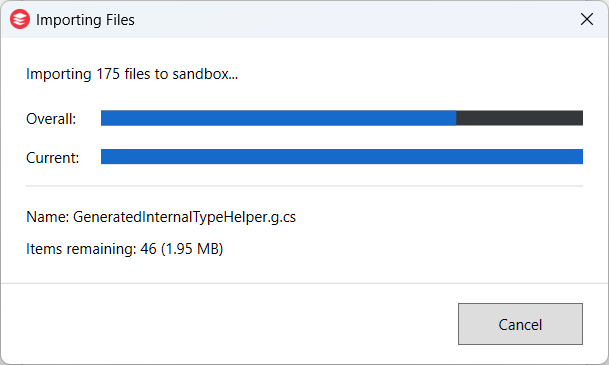
- Large imports may show a progress dialog.
Progress Tracking
For larger imports (5+ files or more than 10 MB total):
- A dialog appears showing:
- Overall progress
- Current file being imported
- Estimated items remaining
- You can click Cancel to stop the import.
Handling Import Errors
If a file fails to import, you’ll see an error dialog with:
- The name of the file that failed
- An error message
- Detailed error information (expandable)
You can choose to:
- Try Again – Retry importing the failed file
- Skip – Skip this file and continue
- Cancel – Cancel the entire import
If imports repeatedly fail, see the Files troubleshooting section.
Opening Files
To open a file from the Files tab:
- Navigate to the file you want.
- Double-click it or right-click and choose Open.
The file opens in an application that your organization has associated with that file type for your currently selected Site.
If no application is available for that file type, you’ll see an error message. In that case:
- Confirm that the file extension is correct.
- Contact your administrator or help desk to request an app that can open it.
Deleting Files and Folders
To delete an item:
- Right-click the file or folder.
- Choose Delete.
- Confirm the deletion when prompted.
Notes:
- Deleting a folder removes the folder and all its contents.
- There is no built-in recycle bin in the sandbox; once deleted, items may not be recoverable.
Cloud Storage (Turbo Drive)
Turbo Drive provides access to your organization’s cloud storage and file shares from inside sandboxed applications.
You can think of Turbo Drive as your Turbo T: drive on Windows (or a similar mount point on macOS and Linux).
What Turbo Drive Looks Like
Depending on your platform you may see:
- On Windows: a drive like T: in file dialogs
- On macOS: a File Provider location under
~/Library/CloudStorage/Turbo Drive - On Linux: a mount point like
/mnt/tdrive
Within Turbo Drive, your administrator may have configured folders such as:
- OneDrive – Your OneDrive business folders
- Dropbox – Personal or team Dropbox folders
- SMB – Shared network folders
Opening and Saving to Turbo Drive
From inside a sandboxed application (for example, Word, Excel, or a PDF viewer):
- Use File → Open (or Save As) as you normally would.
- In the file dialog, navigate to the Turbo Drive location (for example, T: on Windows).
- Browse to the desired folder (OneDrive, Dropbox, SMB, etc.).
- Open or save your file.
Benefits:
- You can access your cloud storage without installing local sync clients.
- All access is routed through the Turbo sandbox according to your organization’s policies.
If you expect to see a cloud folder but it’s missing, see:
For administrators configuring Turbo Drive and mounts, see:
Policy and Configuration (Advanced)
Your administrator controls which file operations are allowed and which applications handle specific file types.
- Import: Which file types can be imported into the sandbox
- Open: Which files can be opened and which apps handle them
- Delete: Which files can be deleted
- List: Which files are visible in the file browser
For detailed configuration, administrators can use:
If you run into problems you cannot resolve, see the Files troubleshooting section and then contact your help desk with screenshots and error messages.