
Appearance
Turbo Launcher
The Turbo Launcher is a desktop application that provides seamless integration between native desktop applications and Turbo's virtualization platform. It discovers installed applications via pluggable, cross‑platform discovery providers, normalizes them to a common schema, applies configurable security policies, and launches applications through Turbo's virtualization layer for enhanced security and isolation.
What You'll Learn
- Launcher features and user interface
- Start Menu and Desktop integration
- Policy-based security controls
- Troubleshooting and known issues
Choose your guide
- End Users: See the Turbo Launcher User Guide for day-to-day usage of Turbo features.
- Administrators: See the Turbo Launcher Administrator Guide for architecture, policy configuration, security, storage, and advanced troubleshooting.
Core Features
Application Discovery
- Provider‑based enumeration of installed apps across Windows, macOS, and Linux
- Coverage includes Progressive Web Apps (PWAs), web bookmarks, SaaS catalogs, and modern package manager/container catalogs with url/pwaId/file activation in policy-managed browsers
- Normalized records with id, name, icon, source, and activation data
- Real‑time monitoring using OS‑specific watchers (filesystem, package registries, LaunchServices, inotify)
- Deterministic deduplication across providers using priority and heuristics
- Start Menu folders are flattened by default; multi‑app folders are shown as expandable groups
See Application Discovery for the provider catalog and configuration.
Policy-Based Security
- JSON-based whitelist security model with fail-safe defaults
- Deny-over-allow precedence: if any matching policy has
action: "deny", the app is blocked even when allow policies also match - Granular control over which applications can be launched
- Policy modifications for launch parameters and Turbo flags
- Enterprise-ready policy deployment and management
- Attribute-based access control (ABAC) using normalized user attributes and context constraints
- Identity Adapters with per-app SSO authorization (least privilege)
- Classification-aware DLP with dynamic watermarking for screen capture/share
- Identity-aware egress controls with ZTNA and secure proxies using networking policy (capabilities, proxyRouting, and app/profile overrides)
- CMMC-aligned audit configuration with fail-closed behavior and SIEM forwarding
Application Virtualization
- Applications run in isolated containers that protect the host system and resolve application conflicts
- Policy-driven control over network access, file system isolation, DLP prevention via Secure Sandbox, and other security settings
- On-device Secure Sandbox with optional sovereign remote placement controls
- Multiple versions of the same application can run simultaneously without interference
Installation
The Turbo Launcher is installed as part of the Turbo Client installation process. During installation, a desktop shortcut named "Turbo.net Desktop Launcher" is created for easy access.
The launcher can be configured to run in different execution contexts, which affects how launched applications interact with the Turbo system.
On macOS, the Launcher relies on signed system extensions, Network Extension, and File Provider frameworks that require approval on first run (or MDM preapproval on managed fleets). See Turbo Launcher on macOS for system requirements, the first‑run approval flow, and MDM deployment.
User Interface
The Launcher features a tabbed interface with two main sections:
Applications Tab
Displays discovered applications from configured providers filtered by your policy configuration. Click any application to launch it in a Turbo container.
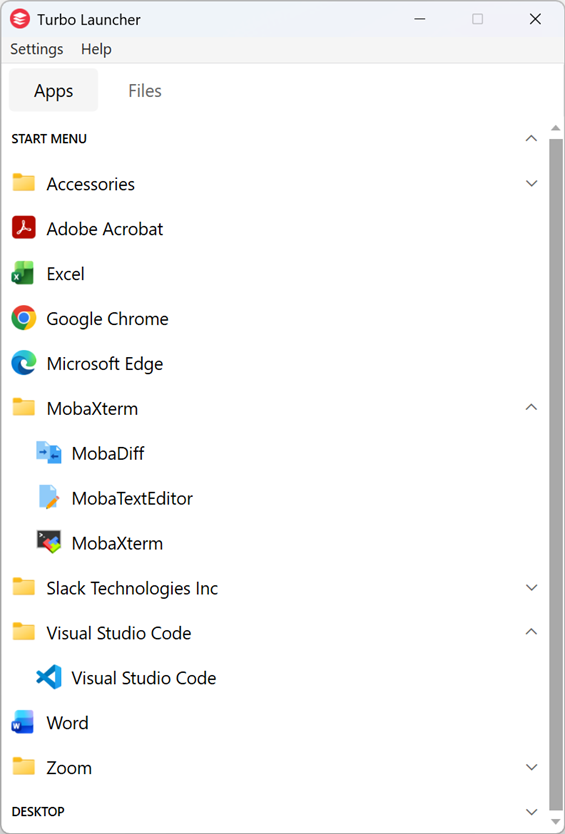
Context Menu (right-click):
- Run: Launches the application
- Run in diagnostic mode: Launches with diagnostic logging enabled (on exit, opens the logs folder for the launched container)
- New session: Starts a new, separate session for this application (uses a new container name). Appears when sessions are tracked for this app.
- Delete sessions: Removes all local sessions for this application (deletes container data).
- Launch Profiles: Additional profile entries appear directly under Run (if configured in policy)
Files Tab
Browse and manage files within your Storage Contexts. Import files via drag-drop, open files with configured applications, and delete files as needed.
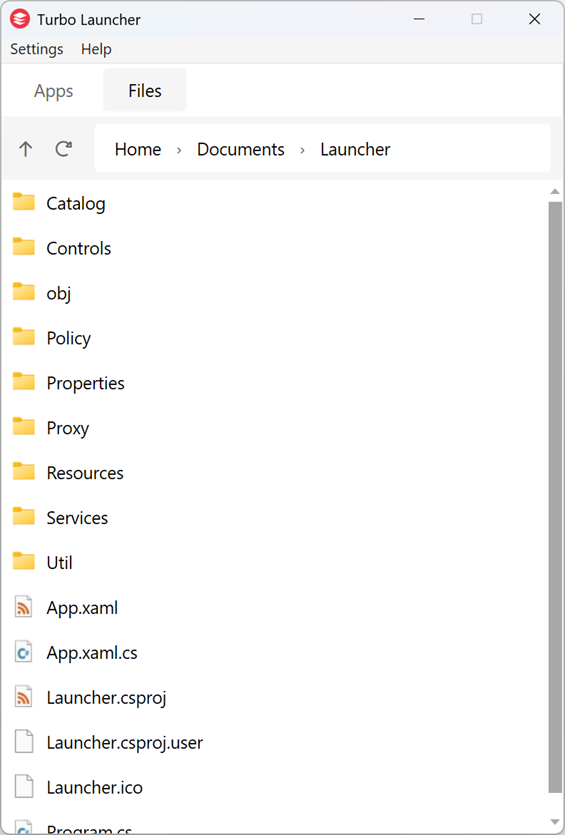
Features:
- Storage Contexts file browser with a context selector
- File import with progress tracking
- File operations (open, delete) with policy enforcement
- Breadcrumb navigation with friendly folder names
See Secure Sandbox Storage for storage hardening best practices. For direct access to OneDrive, Dropbox, and SMB shares via Turbo Drive, see Cloud Storage Integration. For how Files tab Storage Contexts compare to structured mounts used at launch time, see Storage Contexts vs Structured Mounts.
About Dialog
View version information for the Turbo Client and VM.
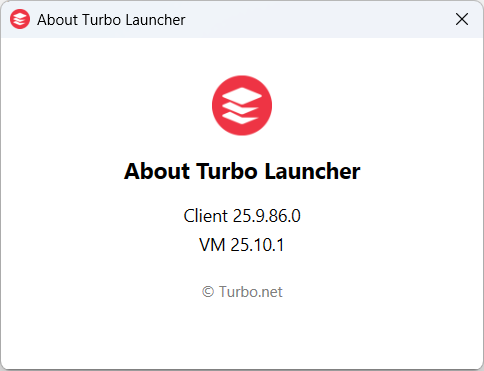
Access from the menu to see:
- Client Version: Assembly version of the Turbo Launcher
- VM Version: Version of the local Turbo VM (or "No local VM" if not installed)
Windows Shell Integration
The Turbo Client provides Windows Explorer integration through a shell extension. Enable with: turbo config --enable=RunInContextMenu
Once enabled:
- Right-click .exe files in Windows Explorer to see "Run in Turbo" option
- Launches applications through the Launcher with full policy evaluation and security controls
Active Providers and Sources
Discovery runs through configured providers in priority order. Typical sources:
Windows
- Shortcuts (windows.shortcuts)
- Start Menu (User):
%APPDATA%\Microsoft\Windows\Start Menu\Programs - Start Menu (All Users):
%PROGRAMDATA%\Microsoft\Windows\Start Menu\Programs - Desktop (User):
%USERPROFILE%\Desktop - Desktop (Public):
%PUBLIC%\Desktop
- Start Menu (User):
- MSIX/UWP (windows.msix)
shell:AppsFolderand AppX package registrations (per‑user and system)
macOS
- LaunchServices (macos.launchservices)
/Applications,/System/Applications, and~/Applications
- Homebrew (macos.homebrew)
- Formulae and casks installed via Homebrew that expose CLI tools or
.appbundles
- Formulae and casks installed via Homebrew that expose CLI tools or
Linux
- Freedesktop (linux.freedesktop)
- System:
/usr/share/applications - User:
~/.local/share/applications
- System:
- Flatpak (linux.flatpak)
- Installed Flatpak applications from configured remotes (for example,
flathub)
- Installed Flatpak applications from configured remotes (for example,
- Snap (linux.snap)
- Installed snaps that expose desktop entries or primary commands
Cross‑platform
- Web PWAs (web.pwa)
- Web Bookmarks (web.bookmarks)
- SaaS Catalogs (saas.okta, saas.microsoft365, saas.generic)
- CLI Tools on PATH (cli.path)
- Portable Applications (portable.apps)
- Turbo Workspaces (turbo.workspaces)
- Containerized desktop apps (container.dockerDesktop)
See Application Discovery for full details and configuration.
Supported Application Manifests
- Windows Shortcuts:
.lnk,.url - Windows MSIX/UWP: AUMID‑addressable packaged apps (AppsFolder)
- macOS Applications:
.appbundles (CFBundleIdentifier) - Linux Applications:
.desktopfiles (Freedesktop spec) - Direct Executables & Scripts (PATH / Portable):
- Windows:
.exe,.cmd,.bat,.ps1 - macOS: Mach‑O binaries and
.appbundles - Linux: ELF binaries and
.sh
- Windows:
- Package Manager Applications: Desktop and CLI apps discovered from package manager providers such as Homebrew, Flatpak, and Snap
- Containerized Desktop Apps: Applications exposed via Docker Desktop app catalogs and discovered by the container.dockerDesktop provider
- Progressive Web Apps: Installed PWAs from supported browsers (activation
pwaId) - SaaS Links: Catalog or bookmark entries resolving to HTTPS URLs (activation
url) - Turbo Workspaces Applications: Applications published in Turbo Server Workspaces that the user is entitled to
Details and activation mappings are described in Application Discovery.
Configuration
The Launcher uses JSON-based policy files for security and launch configuration. See the Policy System documentation for detailed configuration options.
Integration Points
Turbo Client Integration
Applications are launched through Turbo Client using the command:
text
turbo run base {turbo-flags} --name={instance-name} --startup-file="{executable}" -- {arguments}Next Steps
- Turbo Launcher on macOS: macOS system requirements, first‑run approvals, and MDM deployment
- Applications Tab: Launch and manage applications from the Applications tab
- Files Tab: Browse and import sandbox files from the Files tab
- Storage and File Management: Admin overview of Storage Contexts, structured mounts, Turbo Drive, and file handling
- Concepts & Reference: Reference library for discovery, runtime, storage, and cloud integration schemas and examples (use when you already know the topic you need)
- Runtime Configuration: Configure Secure Sandbox, device controls, optional sovereign remote placement, and incident response
- Mounts & Shared Storage: Understand Storage Contexts vs structured mounts
- Session Management and Launch Behavior: How the Launcher handles existing apps, new windows, Launch Profiles, and Delete sessions (reset local session data)
- Cloud Storage Integration (Turbo Drive): Configure Turbo Drive mounts for OneDrive, Dropbox, and SMB shares
- Secure Sandbox Storage: Encryption, ACLs, non‑C: volumes, and removable media guidance
- Policy System: Configure security policies and launch modifications, including File Handling
- Proxy Settings: Configure and test proxy connections
- Troubleshooting: Common issues and solutions